I’ve searched the forums but can’t find the same issue, or at least anything related seemed to not solve for me. I’ve noticed my prints are printing way too light, there are almost no deep dark shadows, despite them being in the file (and viewing on a properly calibrated monitor). I’m printing on Canson Platine with the Canson Platine Neutral quad on Piezography pro inks. I printed a purge file and the K channel is definitely not what K should look like (and the other channels start to blend together, too). I printed a 256 step chart and I do get some solid black, and nice gradations on the other target swatches. I have a perfect nozzle check, banding is negligible, if any. I’ve checked to make sure I have the correct paper settings on the printer (thickness, platen, etc). Do I have a misunderstanding of the purge file (i.e. is it not supposed to print pure ink from each channel)? With a supported paper, is it still advisable to run through the linearization due to inconsistencies between printers/print heads/other?
Is this ink starvation? Is the procedure to fix ink starvation to replace dampers/other?
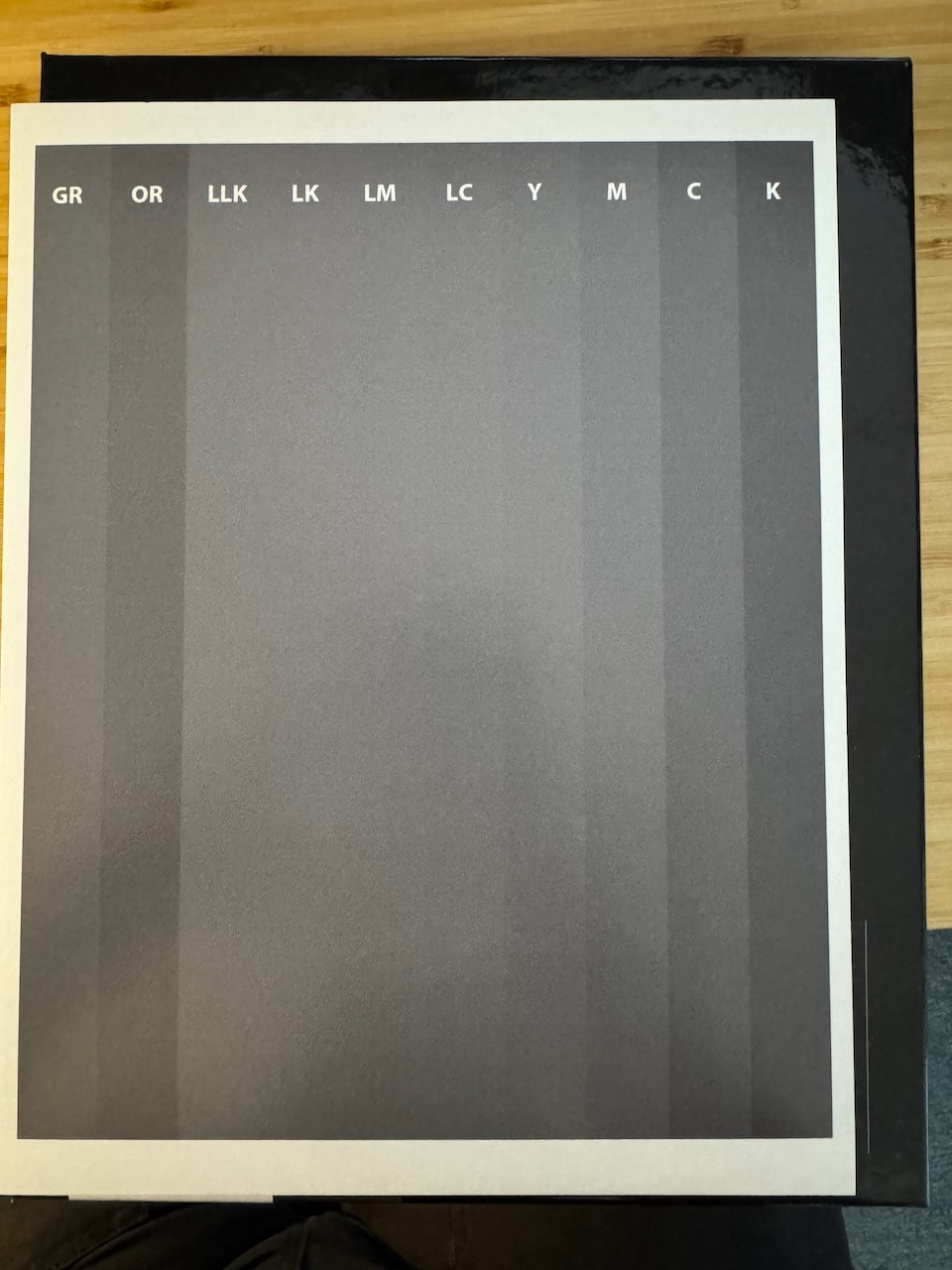
Here is the purge file on top of a black box.
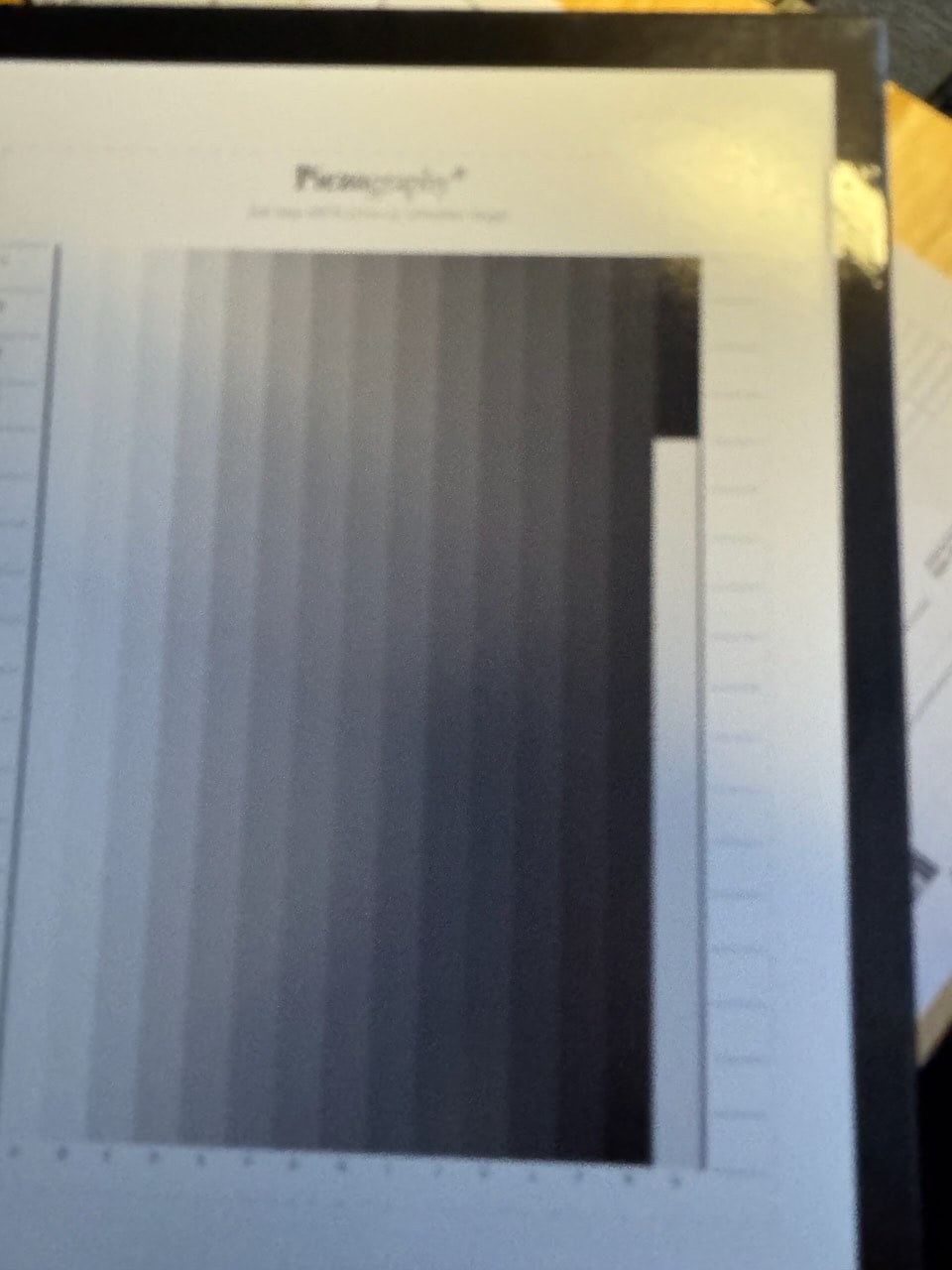
Here is the 256-step target
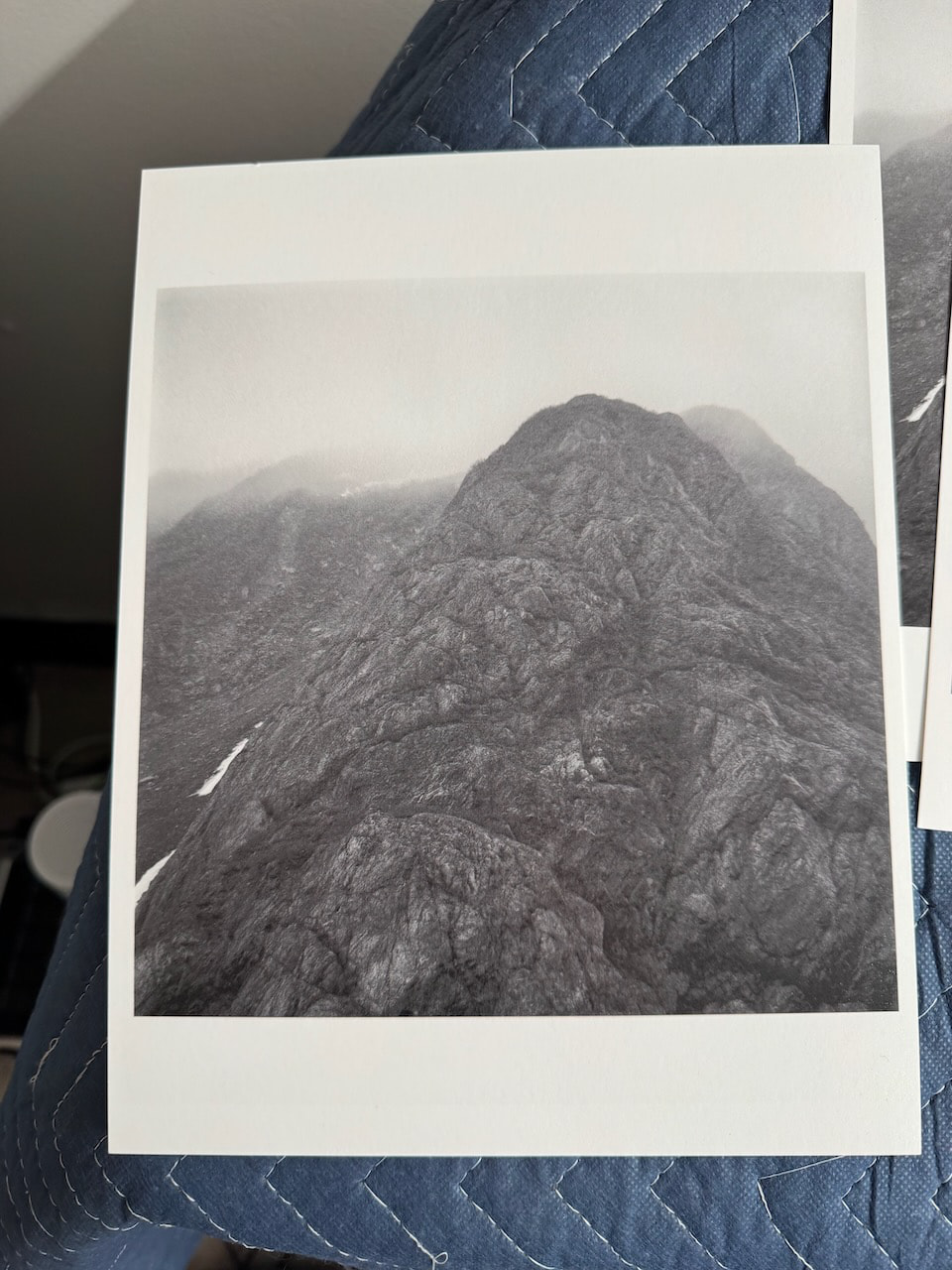
Here is a photo of the print
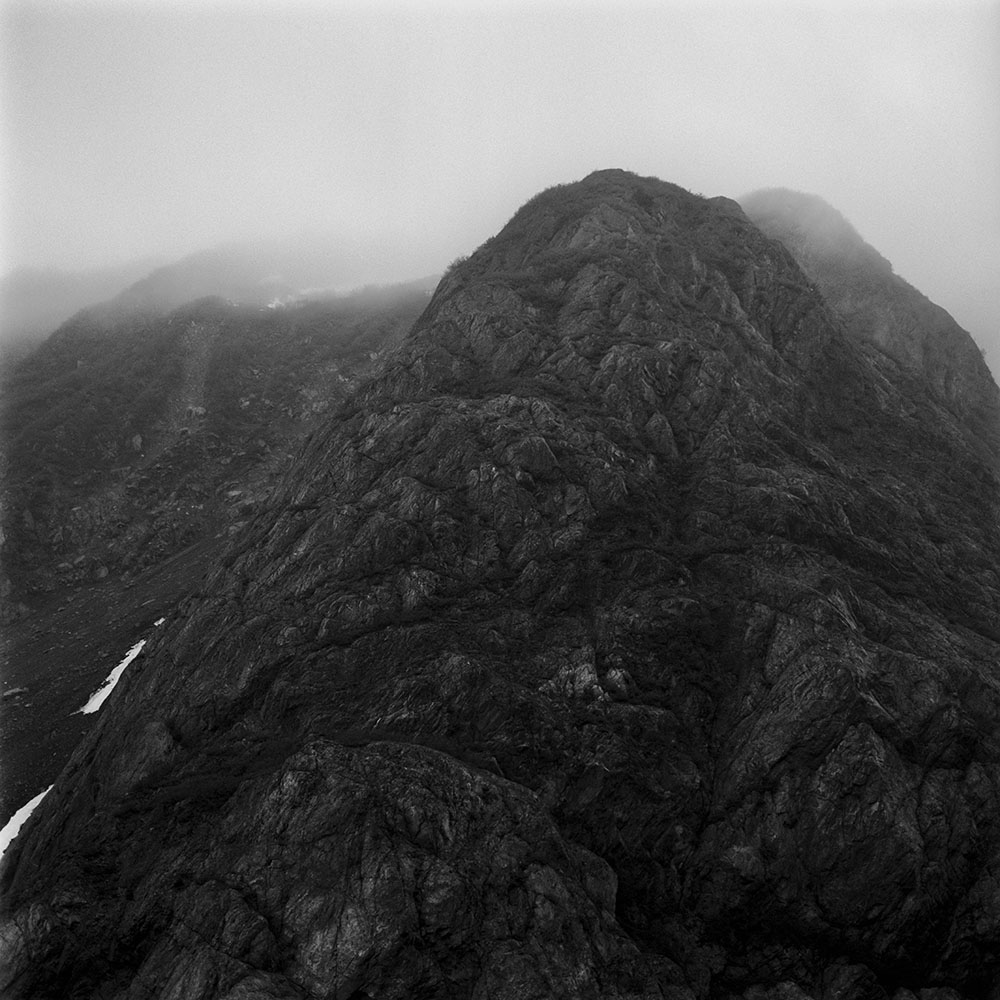
Here is a JPG of the print file
Hi Kris,
I see three potentials.
If this is something that just happened out of the blue - meaning yesterday it printed perfectly and today is not - did you just update OS X from a much earlier edition of OS X? If so from what to what?
If this is a printer that has been sitting for more than just 2-3 months, or and has very old ink in it - it may just be that your ink has settled in which case you can refresh the cartridges with ink, shake them gently, then reinstall and run one INITIAL FILL or Initial Ink Charge (depending upon your printer model). Do not try and short cut with power cleans or you may burn out your print head!
If ink is fresh and you’ve been printing steadily and have not updated OS X there is a possibility that QuadTone RIP has self-corrupted and you can download and reinstall. It will not affect your saved curves by reinstalling.
Rachel
IJM-TechSupport
Sorry! I thought that that was an actual independent channel purge target printing all of the inks independent of one another.
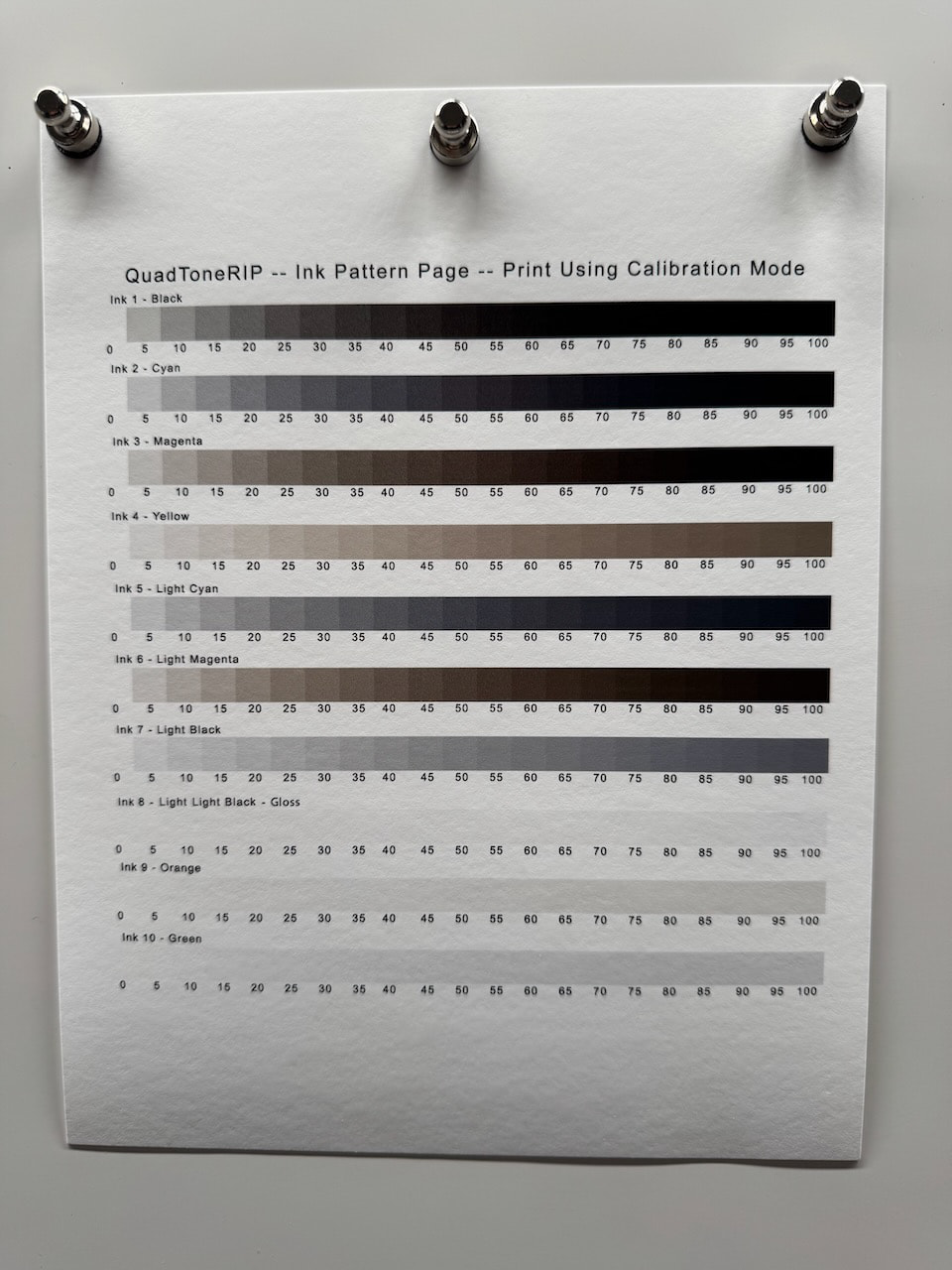
If you want to confirm your inks are correct print the following file in Calibration Mode:
Applications / QuadTone RIP / CurveDesign / Images / inkseparation10.tif
You can upload a photo of that and I can help you confirm that the inks have not been contaminated from an mis-fill or are stale.
Year old ink is fine.
R
The original purge image was /Applications/Piezography/Images/QTR_Flush_images/QTR-10-ink purge.tif
Here is a photo of the print you asked for. Looks really good.
Seems image related perhaps, unless some workflow issue. Your inks are healthy!
R
So, I took a look in Photoshop. Checked that I was indeed Grayscale, 16-bit, and gamma 2.2 as recommended.
Then, I selected a soft proof profile… The image lightened up quite considerably… I’ll adjust based off this soft proof. I was soft proofing in Lightroom and it wasn’t this dramatic.
thanks for another excellent dose of support